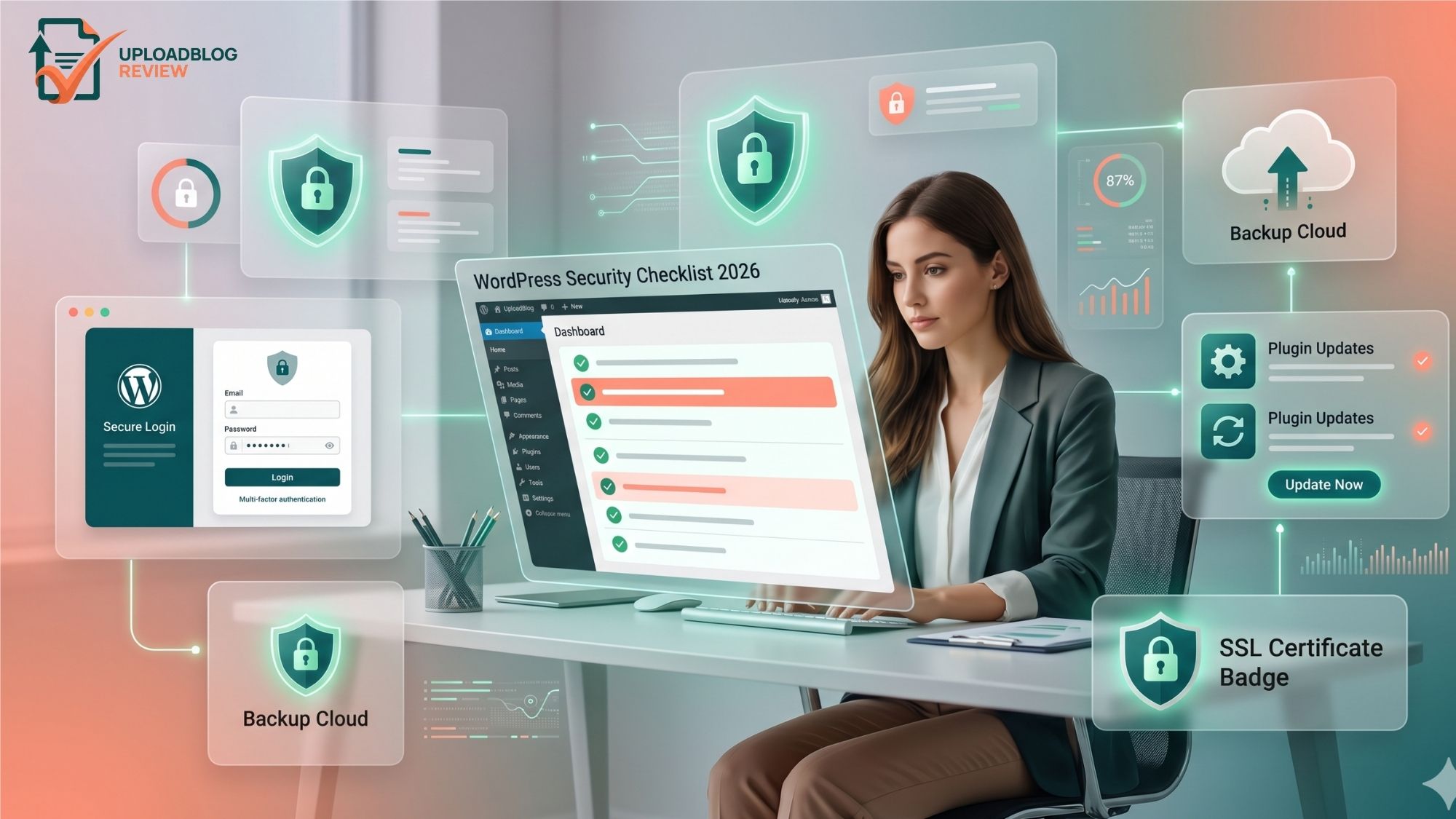
A WordPress website can grow quickly, but that growth only feels safe when the website is protected. This guide from UploadBlog Review explains a simple WordPress security checklist for beginners, bloggers, and small website owners who want fewer risks and better control in 2026.
The goal is not to make security feel complicated. The goal is to help you build a safer routine with updates, strong login protection, clean plugins, backups, SSL, safe hosting, and regular checks. You can also explore more WordPress guides on uploadblogreview.com when you want simple website improvement tips.
Why WordPress Security Matters in 2026
WordPress is flexible because it supports themes, plugins, users, media files, forms, comments, and many third-party tools. That flexibility is powerful, but it also means every website owner needs basic protection. A weak password, outdated plugin, old theme, unsafe hosting account, or missing backup can create problems later.
Good WordPress security is not only about stopping hackers. It also protects your content, search visibility, customer trust, affiliate pages, contact forms, login area, and business reputation. If your website goes down or shows spam, visitors may leave quickly and search engines may reduce trust signals over time.
This checklist is designed for practical use. You can follow it one step at a time and improve your website without needing advanced development knowledge.
Quick WordPress Security Checklist
| Security Step | Why It Matters | Priority |
| Update WordPress, themes, and plugins | Outdated software can expose known vulnerabilities. | High |
| Use strong passwords and 2FA | Weak logins are a common entry point. | High |
| Limit login attempts | This reduces brute-force login abuse. | High |
| Choose secure hosting | Hosting quality affects backups, firewall, SSL, malware scanning, and uptime. | High |
| Install a trusted security plugin | A good plugin can monitor threats and harden basic settings. | Medium |
| Create regular backups | Backups help you recover after errors, hacks, or broken updates. | High |
| Use SSL | SSL protects data and improves visitor trust. | High |
| Remove unused plugins and themes | Unused files can still become security risks. | Medium |
1. Keep WordPress Core, Themes, and Plugins Updated
Updates are one of the simplest security habits. WordPress core updates can include security improvements, bug fixes, compatibility changes, and performance improvements. Theme and plugin updates can also close vulnerabilities that attackers may try to abuse.
Before updating a live site, create a backup and check whether the update is compatible with your setup. If you use many plugins, review your plugin list often. You can use the plugin reviews section on uploadblogreview.com to compare useful WordPress tools before installing too many extras.
- Update WordPress core as soon as safe updates are available.
- Update themes and plugins from trusted sources only.
- Avoid abandoned plugins that have not been updated for a long time.
- Test important updates when your website receives traffic or generates leads.
2. Use Strong Passwords and Two-Factor Authentication
A secure WordPress site starts with secure logins. Many attacks begin with username and password guessing. If your admin password is short, reused, or easy to guess, your website is exposed even if the rest of your setup looks professional.
Use a long, unique password for every admin account. Add two-factor authentication when possible. Two-factor authentication adds another check during login, so a stolen password alone may not be enough to access your dashboard.
- Avoid usernames like admin, administrator, or your domain name.
- Use a password manager to create long unique passwords.
- Enable two-factor authentication for admin and editor accounts.
- Remove old users who no longer need access.
3. Limit Login Attempts
WordPress login pages can receive repeated login attempts from bots. Limiting login attempts helps block repeated password guessing. It is a simple step that can make your dashboard harder to abuse.
If your hosting company or security plugin offers login protection, turn it on. You can also use a plugin that blocks repeated failed login attempts and gives temporary lockouts after too many wrong passwords.
4. Choose Secure Hosting
Hosting is not only about price and speed. A good hosting provider can also support your WordPress security with SSL, malware scanning, server-level firewalls, backups, support, isolation, and clean server settings.
If your website is important for a blog, business, affiliate project, or lead generation page, do not choose hosting only because it is cheap. Compare support quality, backup options, uptime, PHP versions, security tools, and dashboard simplicity. The hosting reviews category on UploadBlog Review can help you compare hosting options before making a decision.
- Use hosting that supports the latest stable PHP versions.
- Check whether daily backups are included or available.
- Use free or paid SSL through the hosting panel.
- Choose hosting with responsive support when your website matters.
5. Install a Trusted WordPress Security Plugin
A security plugin can help with firewall rules, malware scanning, login protection, file change detection, spam prevention, and security alerts. Beginners do not need every advanced feature, but they should use a plugin that covers the basics without slowing the website too much.
Do not install multiple security plugins that perform the same job. Too many overlapping tools can create conflicts, slow the dashboard, or make settings harder to manage. Pick one trusted plugin and configure it carefully.
6. Use SSL and Force HTTPS
SSL changes your website from HTTP to HTTPS. It helps protect data between visitors and your site. SSL is also important for user trust because browsers warn users when a website is not secure.
Most hosting providers offer free SSL certificates. After activating SSL, check that your website loads correctly on HTTPS and does not show mixed content warnings. Mixed content usually happens when images, scripts, or CSS files still load through HTTP.
7. Create Automatic Backups
Backups are your recovery plan. Even a well-protected WordPress website can face broken updates, server issues, accidental deletions, malware, or plugin conflicts. A recent backup can save hours of stress.
Store backups in a safe location away from your live website. If your backup is stored only on the same server, it may not help during major hosting problems. Use off-site storage when possible.
- Create automatic daily or weekly backups based on website activity.
- Store backups away from the live website when possible.
- Test your restore process before an emergency happens.
- Keep backups before major theme, plugin, or WordPress updates.
8. Manage User Roles Carefully
Not every user needs admin access. WordPress user roles exist for a reason. If a person only writes content, they may only need Author or Editor access. If someone only handles comments, they do not need full administrator permissions.
Give every user the minimum access needed to complete their task. Remove inactive users, old agency accounts, old developers, test users, and temporary logins that are no longer needed.
9. Remove Unused Themes and Plugins
Unused plugins and themes can still create risk if they remain installed. Even if a plugin is inactive, outdated files may remain on the server. Keeping your WordPress dashboard clean makes security easier to manage.
Keep your active theme, one default fallback theme if needed, and only the plugins you actually use. Delete everything else after taking a backup and confirming it is not needed.
10. Secure Forms, Comments, and Uploads
Forms, comments, and media uploads can attract spam and abuse. Contact forms should have spam protection, email validation, and basic field checks. Comments should be moderated if your blog receives spam. File uploads should be limited to safe file types.
If your website publishes reviews or affiliate content, protect forms carefully because spam submissions can waste time and affect your workflow.
11. Monitor Your Website Regularly
WordPress security is not a one-time task. You need a simple routine. Check updates, review users, monitor comments, scan for malware, check backups, and confirm your website loads correctly. A monthly review can prevent small problems from becoming bigger issues.
Website owners who also work on traffic growth should connect security with SEO. A hacked website can damage user trust and organic visibility. Read more SEO guides when you want to improve search performance while keeping your site healthy.
12. Learn from the Official WordPress Hardening Guide
For deeper technical guidance, visit the official WordPress hardening guide. It explains common WordPress security risks and practical ways to harden a WordPress installation. This is the outgoing reference link for this article.
Beginners do not need to apply every advanced server-level step immediately, but it is useful to understand the official recommendations and discuss them with your hosting provider or developer when your website becomes more important.
Common WordPress Security Mistakes to Avoid
- Using one weak password across multiple websites.
- Keeping old plugins installed because you may use them later.
- Ignoring update notifications for months.
- Giving admin access to every team member.
- Running a website without backups.
- Choosing hosting only by price without checking security features.
- Installing too many plugins without reviewing quality or updates.
Recommended Internal Resources
If you are new to the website, start from the Start Here page to understand how UploadBlog Review organizes guides, reviews, and comparisons.
For more content related to WordPress website setup, plugins, speed, and security, browse the WordPress guides category.
For hosting decisions that affect website performance and protection, read the latest hosting reviews before choosing a provider.
FAQs About WordPress Security
Is WordPress safe for beginners?
Yes, WordPress can be safe for beginners when it is updated, backed up, protected with strong passwords, and hosted on a reliable server. The main risk usually comes from poor maintenance, weak logins, and outdated plugins.
Do I need a security plugin?
Most beginner websites benefit from one trusted security plugin. It can help with login protection, scanning, alerts, and firewall features. Avoid using several security plugins at the same time.
How often should I back up my WordPress website?
A small blog may use weekly backups, but active websites should use daily backups. If you publish content often or receive leads, orders, or form submissions, more frequent backups are safer.
Can cheap hosting affect WordPress security?
Yes, hosting quality can affect security, uptime, backups, SSL, malware scanning, support, and server isolation. Cheap hosting is not always bad, but you should compare security features before choosing.
Conclusion
WordPress security does not need to feel overwhelming. Start with the basics: update your website, use strong logins, limit login attempts, choose secure hosting, install one trusted security plugin, activate SSL, create backups, manage users carefully, and remove unused plugins.
This WordPress security checklist from UploadBlog Review gives beginners a practical path to protect a website in 2026. Keep learning from uploadblogreview.com, review your security routine regularly, and make safe website management part of your long-term growth plan.